
Design Studio Guide
Christmas Light Studio Instructions
Rain Block® Christmas Light Studio helps you plan outdoor holiday lighting with better accuracy before you install. Follow this guide to upload a house photo, draw your light runs, preview your design, and estimate the materials you need.
 Launch the App
1
Quick Start
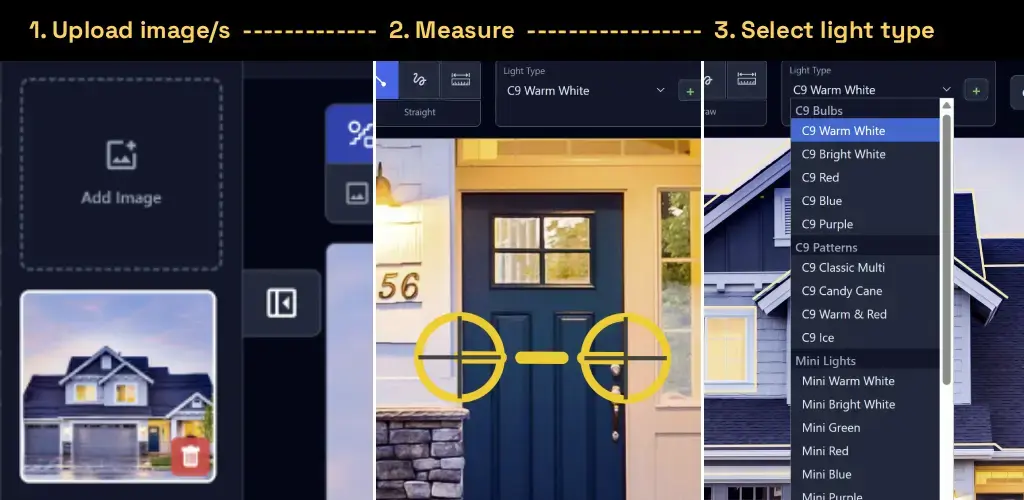
- Upload a clear, front-facing photo of your home or property.
 Set a measurement reference using a known length, like a standard door or window.
- Choose a light type from the palette.
- Draw your runs along rooflines, windows, and other features.
- Switch to Preview mode to review placement and estimate material needs.
2
Design Mode
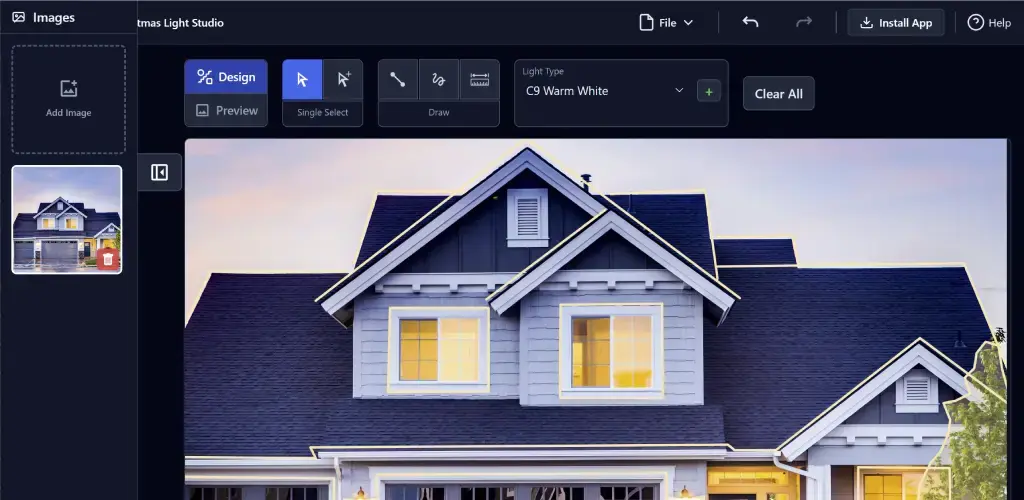
Design mode is where you place and edit your light runs. Use the right tool for each surface and refine your layout before switching to preview.
- Use
 Straight Line for crisp roof edges and
  Freehand for curves.
 - Use
 Select to adjust control points after drawing.
 - Use
 Multi-Select to update or remove multiple runs together.
 - Press Enter to finish a run and Escape to cancel the active run.
- Double-click a run to delete it, or use Delete/Backspace on a selected run.
- When your line returns to its start point, choose Keep as Line to place lights along the perimeter, or Close as Shape to fill the area and distribute lights inside it.
3
Project and Image Workflow
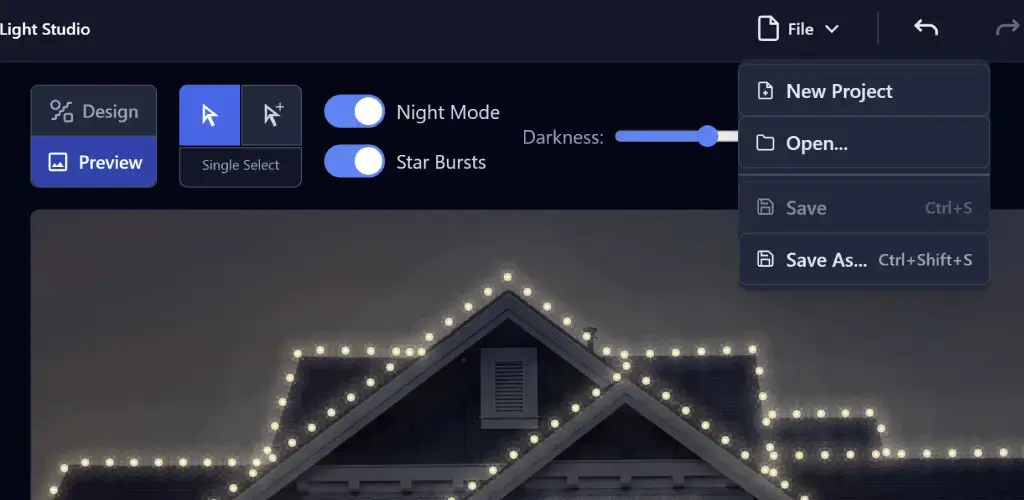
- Use File > New Project, Open, Save, and Save As to manage .clv project files.
- If your browser supports it, Save writes to the same file after Save As.
- You can add multiple house photos and switch between them in the left image strip.
- Each image keeps its own light runs and measurement reference.
4
Measurement and Estimates
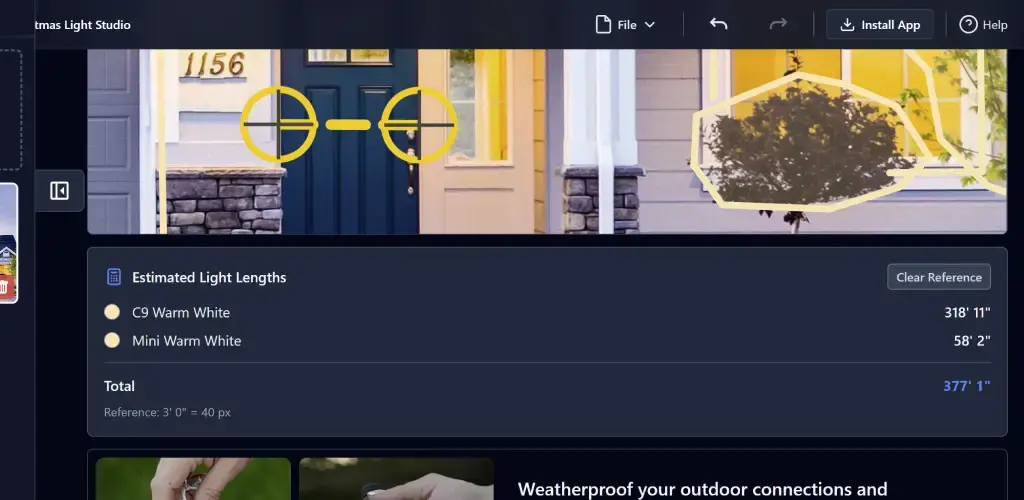
- Set a measurement reference before relying on estimated light lengths.
- Use a known real-world distance for better estimates, such as a door width or window span.
- You can drag the measurement endpoints to refine accuracy.
- Clearing the measurement reference removes material estimates until you set it again.
5
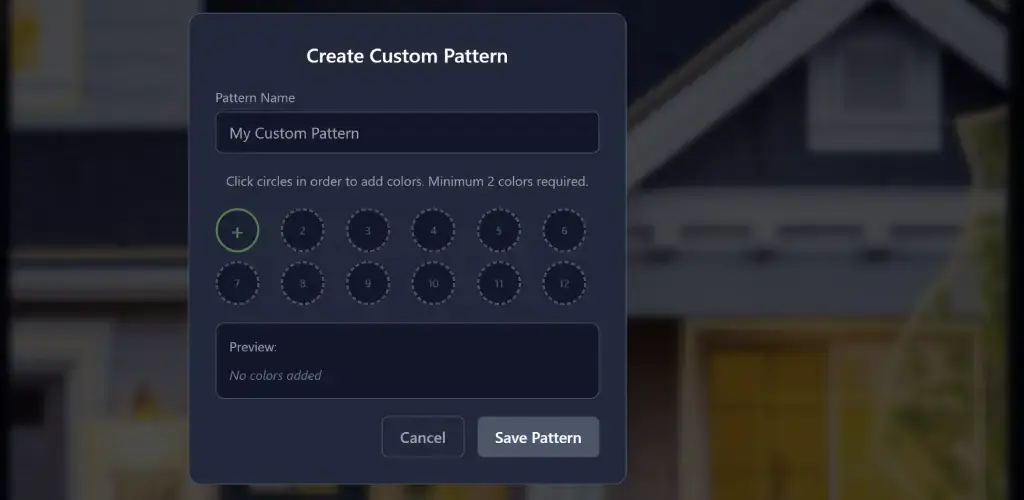
Custom Light Patterns
- Open the Light Type palette and choose the Custom Pattern option.
- Enter a pattern name and select at least two colors.
- Save the pattern to add it to your available light types.
- Select runs first if you want the new pattern applied to those runs immediately.
- Use the edit/update controls in the palette to refine saved custom patterns later.
6
Preview Mode
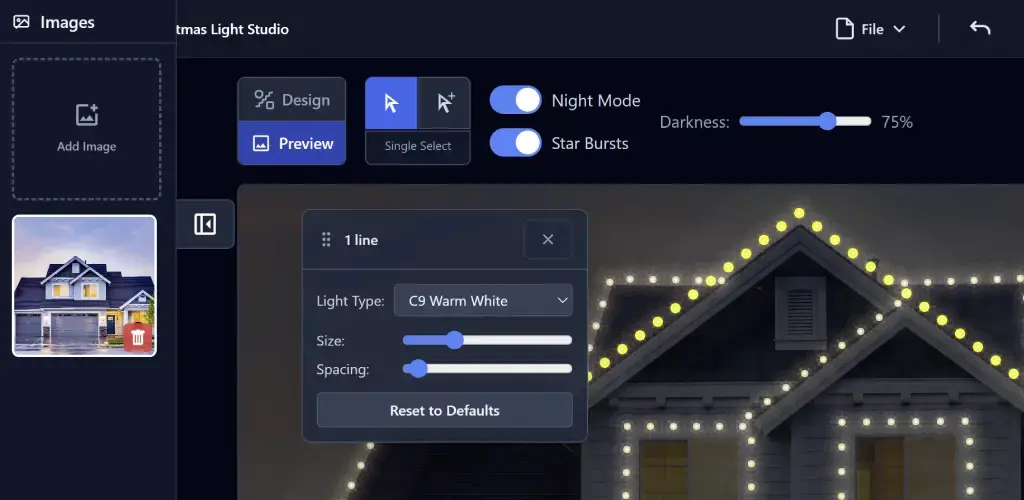
Preview mode helps you validate your layout and prepare for install day by checking spacing, section lengths, and overall look.
- Review bulb spacing and run visibility before installation.
- Toggle Night Mode and adjust darkness for realistic after-dark previews.
- Select runs to isolate sections and plan installs by zone.
- Use different light types and colors to keep rooflines, windows, and accents easy to distinguish.
- Shift-click bulbs for multi-select, or turn on Multi-Select mode in Preview.
- Share or download either selected runs or the full preview as needed.
7
Share and Download
- In Preview, use Share to post or copy your design image.
- Use Download to save JPG or PNG output.
- Both Share and Download can target either selected lights or the full design.
Keyboard Shortcuts
UndoCtrl+Z
RedoCtrl+Y
Finish drawingEnter
Cancel drawingEscape
Delete selected runDelete / Backspace
On Mac, use Command instead of Ctrl.
Ready to Build Your Design?
Open the studio and start designing your holiday display in minutes.
Launch the App